Table of Contents
- Why a Year‑End Credit Card Summary Matters
- Financial Planning and Budget Review
- Tax Preparation
- Reward Optimization
- Step‑by‑Step Guide to Downloading the Summary
- 1. Log Into Your Online Credit Card Account
- 2. Locate the Statements or Documents Section
- 3. Choose the Year‑End Summary
- 4. Select the Download Format
- 5. Save the File Securely
- Understanding Each Section of the Summary
- Account Overview
- Transaction Detail
- Interest and Fees
- Rewards Summary
- Balance Carryover
- Tax‑Relevant Information
- Tips for Making the Most of Your Year‑End Summary
- Export to a Spreadsheet for Deeper Analysis
- Set Up Automated Alerts for Future Years
- Compare Multiple Cards Side‑by‑Side
- Negotiate Better Terms
- Archive for Future Reference
- Common Pitfalls and How to Avoid Them
- Missing or Delayed Availability
- File Corruption or Incompatible Formats
- Security Concerns
- Inaccurate Transaction Categorization
- Overlooking Small Fees
Downloading a year‑end credit card summary has become a routine step for anyone who wants a clear snapshot of their spending, rewards, and interest charges before the new fiscal year begins. The process is simple, yet many cardholders overlook the benefits of having a consolidated report that can be used for budgeting, tax deductions, and even negotiating better terms with issuers. In this article we walk through the exact steps to obtain the summary, explain each section of the report, and share practical tips on how to turn raw data into actionable insights.
Whether you manage a single personal card or a portfolio of business cards, the year‑end statement is a valuable document that consolidates months of transactions into a single, downloadable file. By mastering the download procedure now, you avoid the last‑minute scramble that often accompanies the holiday season when banks release their annual summaries. Below, we outline the process, the tools you need, and the best practices for storing and analyzing the information you receive.
Why a Year‑End Credit Card Summary Matters
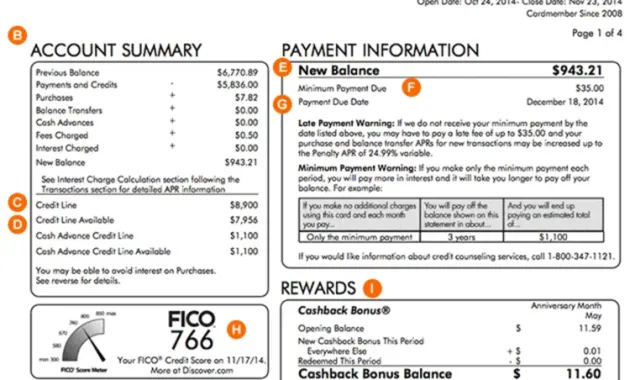
A year‑end credit card summary is more than just a list of purchases; it is a comprehensive record that includes interest charges, fees, rewards earned, and any balance transfers that occurred over the past twelve months. Understanding the importance of this document helps you appreciate why you should download it as soon as it becomes available.
Financial Planning and Budget Review
- Spending patterns: Identify categories where you consistently overspend, such as dining or travel.
- Cash‑flow forecasting: Use the total amount paid and outstanding balances to project future cash needs.
- Goal alignment: Compare actual spending against your yearly financial goals to see where adjustments are needed.
Tax Preparation
- Many jurisdictions allow deductions for interest paid on business credit cards; the summary provides a ready‑made record.
- Charitable contributions made via credit cards are listed, making it easier to claim them on your tax return.
- If you’re self‑employed, the statement can serve as supporting documentation for business expenses.
Reward Optimization
- Track points, miles, or cash‑back earned versus redeemed to gauge the effectiveness of your card portfolio.
- Spot any missed bonus opportunities that could have been claimed before the year closed.
- Use the data to decide whether to keep a card, downgrade, or apply for a higher‑tier product—see Unlock Premium Perks: Understanding Credit Card Tiers Visa Signature vs Infinite for more on tier benefits.
Step‑by‑Step Guide to Downloading the Summary
The exact navigation may vary slightly between issuers, but the core steps remain consistent across most online banking platforms. Follow these instructions to retrieve your year‑end summary quickly and securely.
1. Log Into Your Online Credit Card Account
Begin by signing into the portal or mobile app provided by your card issuer. If you have trouble accessing your account, refer to the guide on Unlock Seamless Access: How to Log Into Your Regions Bank Credit Card Account in Minutes for troubleshooting tips.
2. Locate the Statements or Documents Section
Once logged in, look for a menu labeled “Statements,” “Documents,” or “Account History.” This area typically houses PDFs of monthly statements and annual summaries.
3. Choose the Year‑End Summary
Within the statements list, find the entry titled “Year‑End Summary,” “Annual Statement,” or similar. It is usually dated December 31 or the last day of the billing cycle for the year in question.
4. Select the Download Format
Most banks offer PDF as the default format, but some also provide CSV or Excel files for easier data manipulation. Choose the format that aligns with your intended use—PDF for record‑keeping, CSV/Excel for detailed analysis.
5. Save the File Securely
Download the file to a secure location on your computer or cloud storage. Consider encrypting the file or storing it in a password‑protected folder, especially if it contains sensitive transaction data.
Understanding Each Section of the Summary

After you have the file in hand, the next step is to interpret the information it contains. Below is a breakdown of the typical sections you will encounter.
Account Overview
This opening segment lists your account number (masked for security), the reporting period, and a quick snapshot of total purchases, cash advances, and balance transfers.
Transaction Detail
A chronological list of every transaction, including date, merchant name, amount, and category. Some issuers also display the transaction’s foreign‑currency conversion rate if applicable.
Interest and Fees
Summarizes interest charges (both purchase and cash‑advance APR), annual fees, late‑payment fees, and any other penalties incurred during the year.
Rewards Summary
Shows points, miles, or cash‑back accrued, redeemed, and any bonuses applied. This section often includes a year‑to‑date balance and a projected year‑end total if you continue current spending habits.
Balance Carryover
Displays the opening balance at the start of the year, any payments made, and the closing balance. This helps you see how much debt you carried over versus paid off.
Tax‑Relevant Information
For business cards, the summary may list deductible interest and other tax‑eligible items. Review this carefully if you plan to claim deductions.
Tips for Making the Most of Your Year‑End Summary
Having the data is only half the battle; extracting value from it requires a systematic approach. Below are proven tactics to turn raw numbers into strategic decisions.
Export to a Spreadsheet for Deeper Analysis
If your issuer provides a CSV, import it into Excel or Google Sheets. Create pivot tables to categorize spending by merchant type, month, or geographic region. This visual representation can highlight hidden trends.
Set Up Automated Alerts for Future Years
Many banks allow you to schedule automatic email delivery of annual summaries. Enabling this feature ensures you never miss the download window again.
Compare Multiple Cards Side‑by‑Side
If you hold several cards, compile each card’s summary into a single workbook. Compare interest paid, fees, and rewards earned to determine which card delivers the best net benefit.
Negotiate Better Terms
Armed with evidence of your payment history and low utilization, you can contact your issuer to request a lower APR, higher credit limit, or waived annual fee. Demonstrating responsible behavior often yields favorable outcomes.
Archive for Future Reference
Retain the summary for at least seven years, as recommended by many tax authorities. Store it in a secure, organized folder alongside other financial documents, such as tax returns and investment statements.
Common Pitfalls and How to Avoid Them
Even seasoned credit‑card users can encounter obstacles when trying to download or interpret their year‑end summaries. Below are the most frequent issues and practical solutions.
Missing or Delayed Availability
Some banks release the annual summary a few weeks after the calendar year ends. If you cannot locate it immediately, check the “Pending Documents” or “Message Center” sections of your account portal.
File Corruption or Incompatible Formats
PDFs may become corrupted during download. Re‑download the file, or request a fresh copy from customer service. For CSV files, verify that your spreadsheet software uses the correct delimiter (comma or semicolon).
Security Concerns
Never download statements on public Wi‑Fi or shared computers. Use a trusted, private network and ensure your device has updated antivirus protection.
Inaccurate Transaction Categorization
Issuers sometimes misclassify merchants. If you notice errors, flag the transaction within the portal and request a correction. Accurate categorization improves budgeting and rewards tracking.
Overlooking Small Fees
Annual fees, foreign‑transaction fees, and subscription charges can add up. Review the fees section carefully to ensure you’re aware of all costs associated with each card.
By staying vigilant and following the steps outlined above, you can transform a routine download into a powerful tool for financial empowerment. The year‑end credit card summary not only records your past activity but also lights the path toward smarter spending, smarter rewards, and smarter negotiations with your card issuers. Keep the file handy, revisit it regularly, and let the data guide your decisions throughout the coming year.